

Client Approval: A Password-Free Review Link Instead of WhatsApp Chaos
Updated: October 26, 2026 · 3 min read
Client approval is where agencies lose the most time. In IZY you send your client the posts in a single link. With no password or app, they see each post on their phone the way it will be published, then approve it or leave a note and ask for changes. Every step is recorded.
Four tabs
The label on top of each card shows which step the post is at.
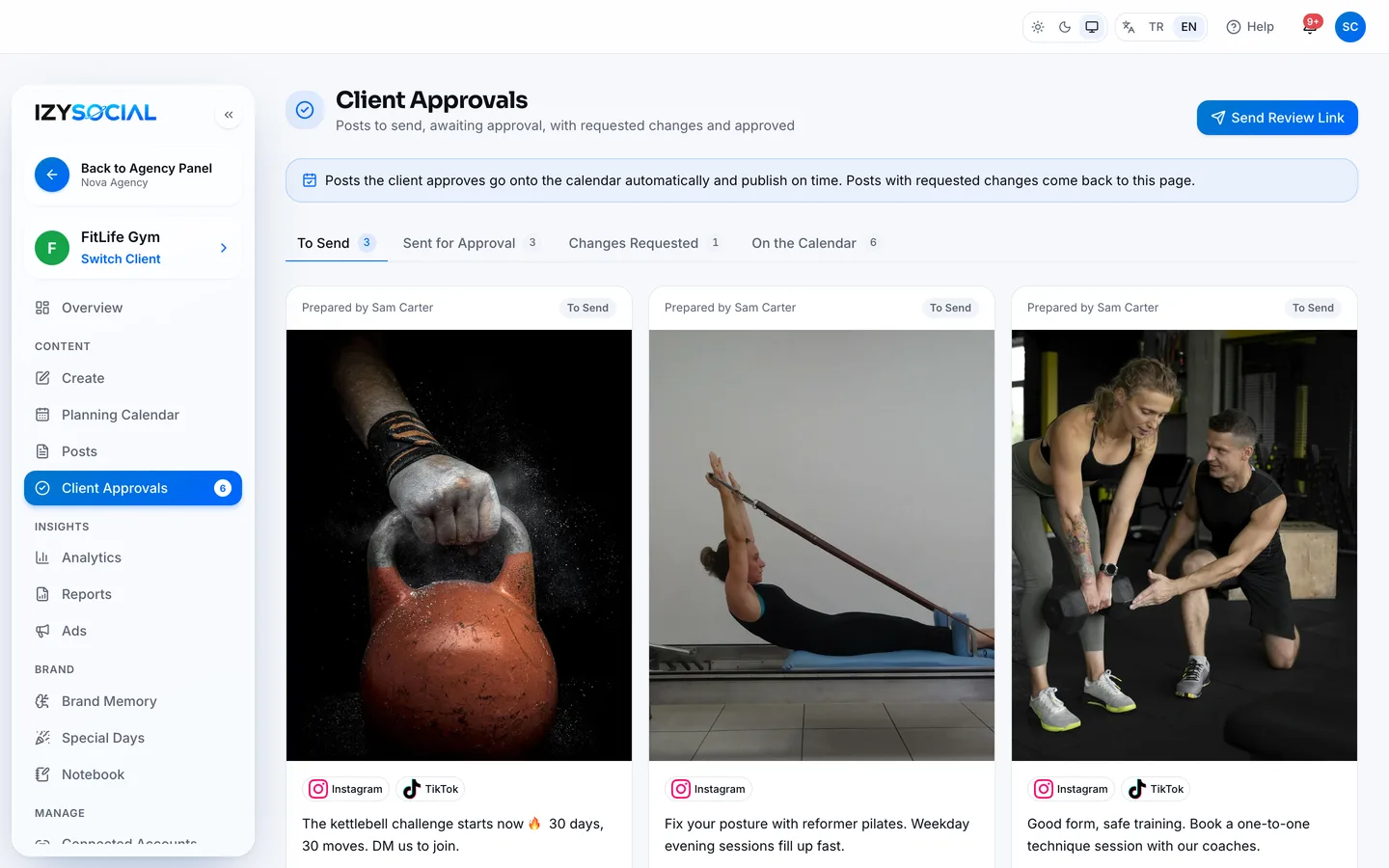
- To Send: posts ready for approval that haven't gone to the client yet.
- Sent for Approval: posts sent to the client in a link and waiting for a reply.
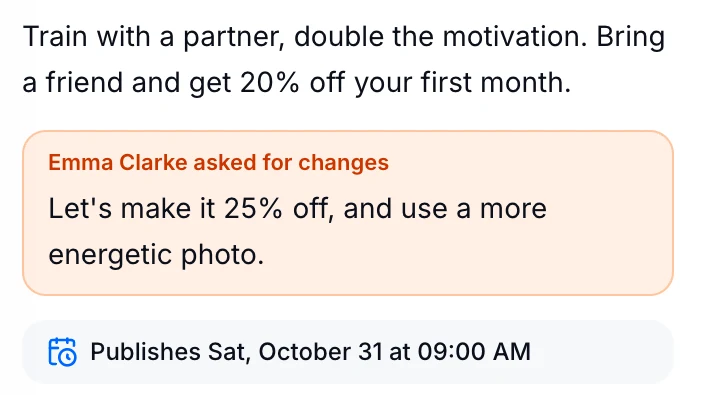
- Changes Requested: posts that came back with the client's note.
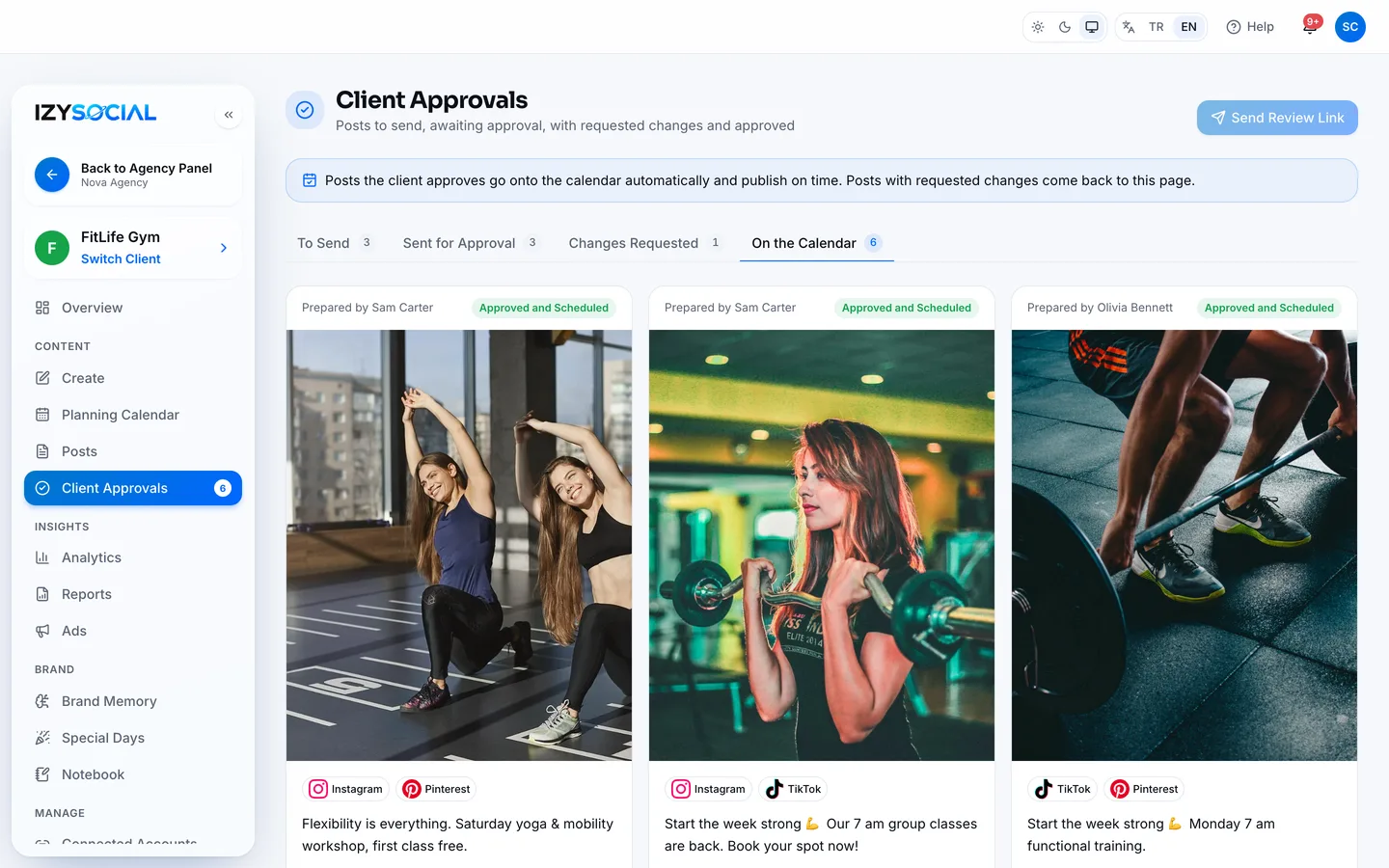
- On the Calendar: posts the client approved, waiting for their publish time.
Sending a review link
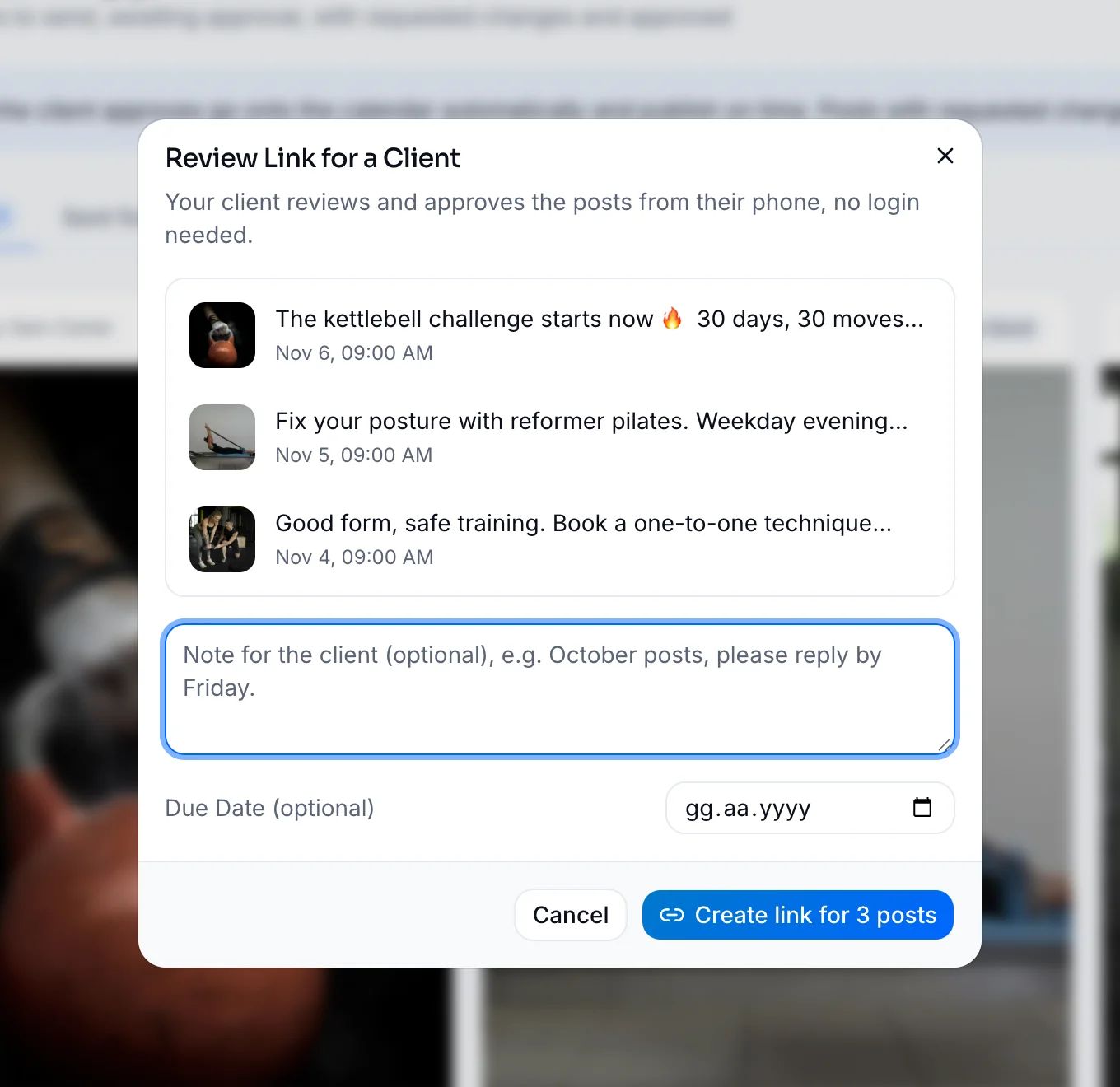
- 1On the To Send tab, press Send Review Link. The button only works on this tab.
- 2The window lists every post on the tab. They all go out in the same link.
- 3Add a note and a due date if you like, e.g. “November posts. Please reply by Friday.”
- 4Press Create link.
Sharing the link
Send it to your client with Copy Link, Email or Share on WhatsApp.
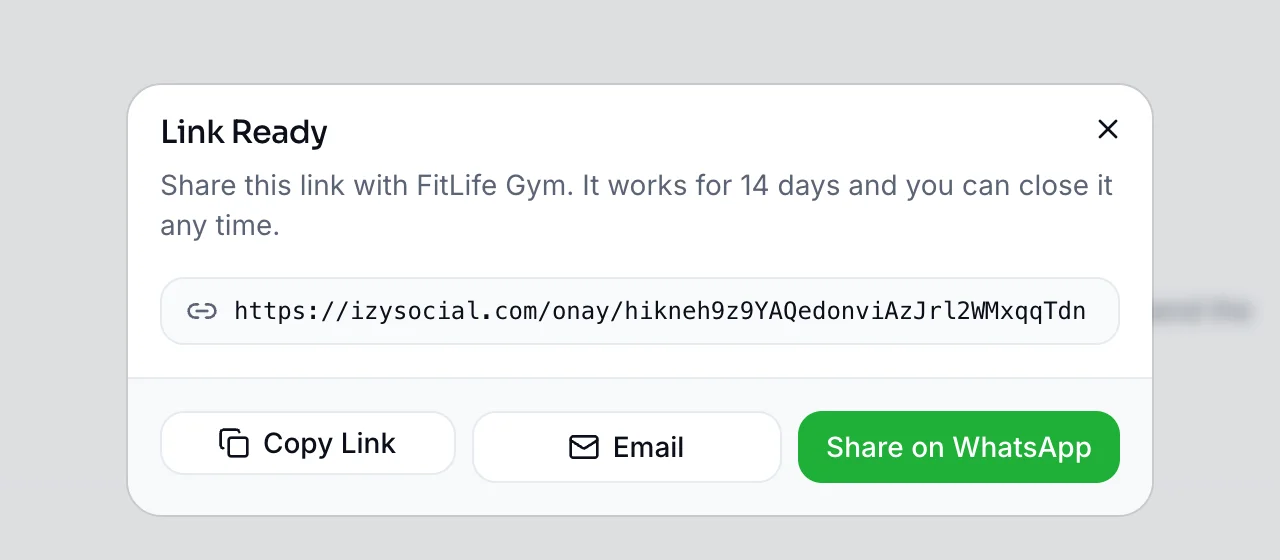
As soon as the link is created, the posts move to Sent for Approval. A post never goes into a second link.
What does the client see?
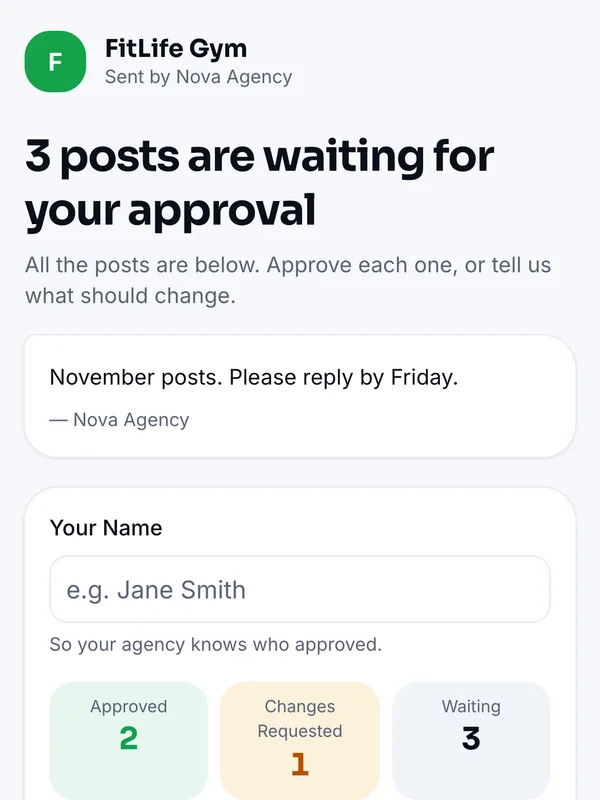
- 1They open the link on their phone and type their name.
- 2They see each post as it will look on the platform it goes to.
- 3They press Approve or Request Changes. If they want changes, they write what should change.
- 4They can approve all remaining posts with one button.
Replies reach the agency panel right away: approved posts go to the calendar, requested changes go to Changes Requested with the client's note.
Managing sent links
The Sent Review Links section on the Sent for Approval tab keeps the links you sent in the last 14 days. Press its header to open it. The newest 3 links show, the rest are under Show all.
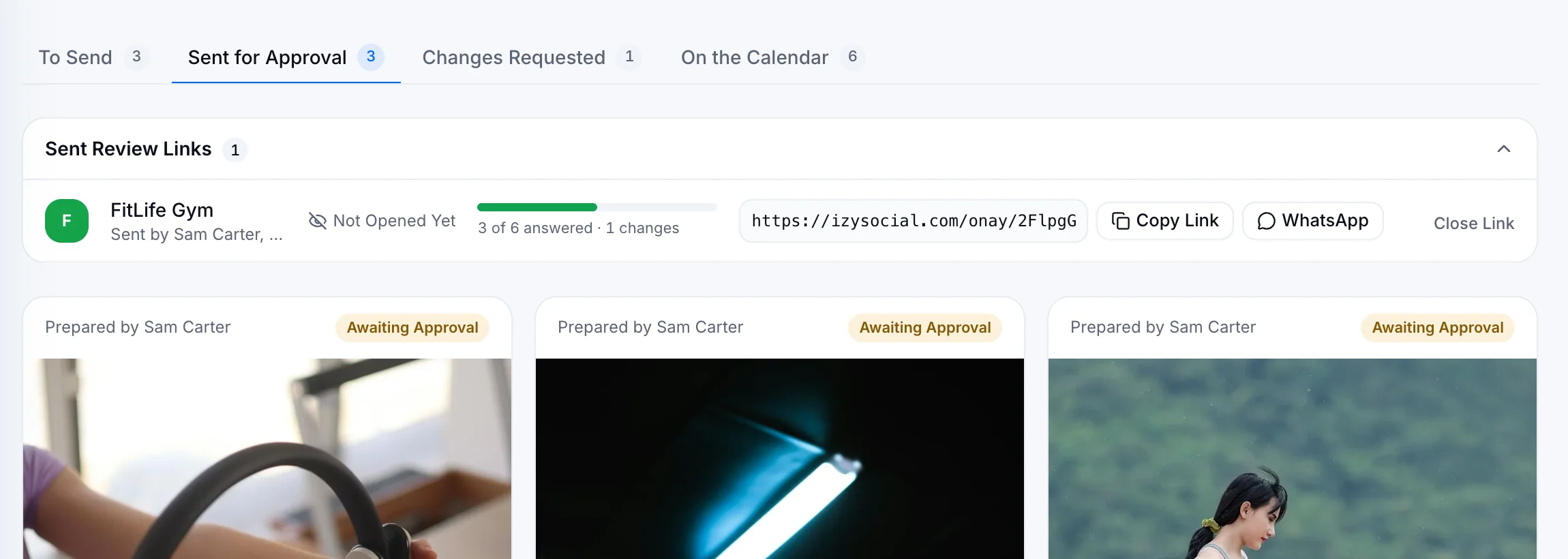
- A live link shows its address. Send it again any time with Copy Link or WhatsApp.
- You can see whether the client opened the link and how many posts they answered.
- Close Link cancels the link. The client can't open it anymore, and posts still waiting go back to To Send.
A link works for 14 days, then closes on its own.
Posts with requested changes
When the client asks for changes, the post lands in Changes Requested together with their note.
- 1Open the post and fix it.
- 2Press Send for Client Approval. The post goes back to To Send and drops off the client's old link.
- 3Send it to your client in a new review link.
Your client can ask for changes as many times as they like. Every request stays in the post's history.
Approved posts
Posts the client approves are added to the calendar automatically and go out on time. Until then they stay on On the Calendar with the label “Approved and Scheduled”.
Deleting a post
On any tab, press Delete Post under a card to delete it. You'll be asked to confirm first.
Frequently asked questions
Does the client need an IZY account?
No. The client never logs in to the panel; they open the review link and approve posts or ask for changes. The link needs no login.
How many times can the client ask for changes?
There's no limit. After each round you fix the post and send it again in a new link.
How do I know the client opened the link?
In the Sent Review Links section on the Sent for Approval tab, each link shows “Opened” and when.
I lost the link. What now?
Copy it again from the links list on the Sent for Approval tab with Copy Link. A link stays open for 14 days.