

Clients: Adding a New Client
Updated: October 14, 2026 · 2 min read
Each client is a separate panel in IZY with its own accounts, calendar, inbox and reports. The Clients page lists them all as cards.
The client list
Each card shows how many accounts are connected, this week's posts, posts waiting for approval, a 14-day engagement trend and the latest report. Click a card to open that client's panel.
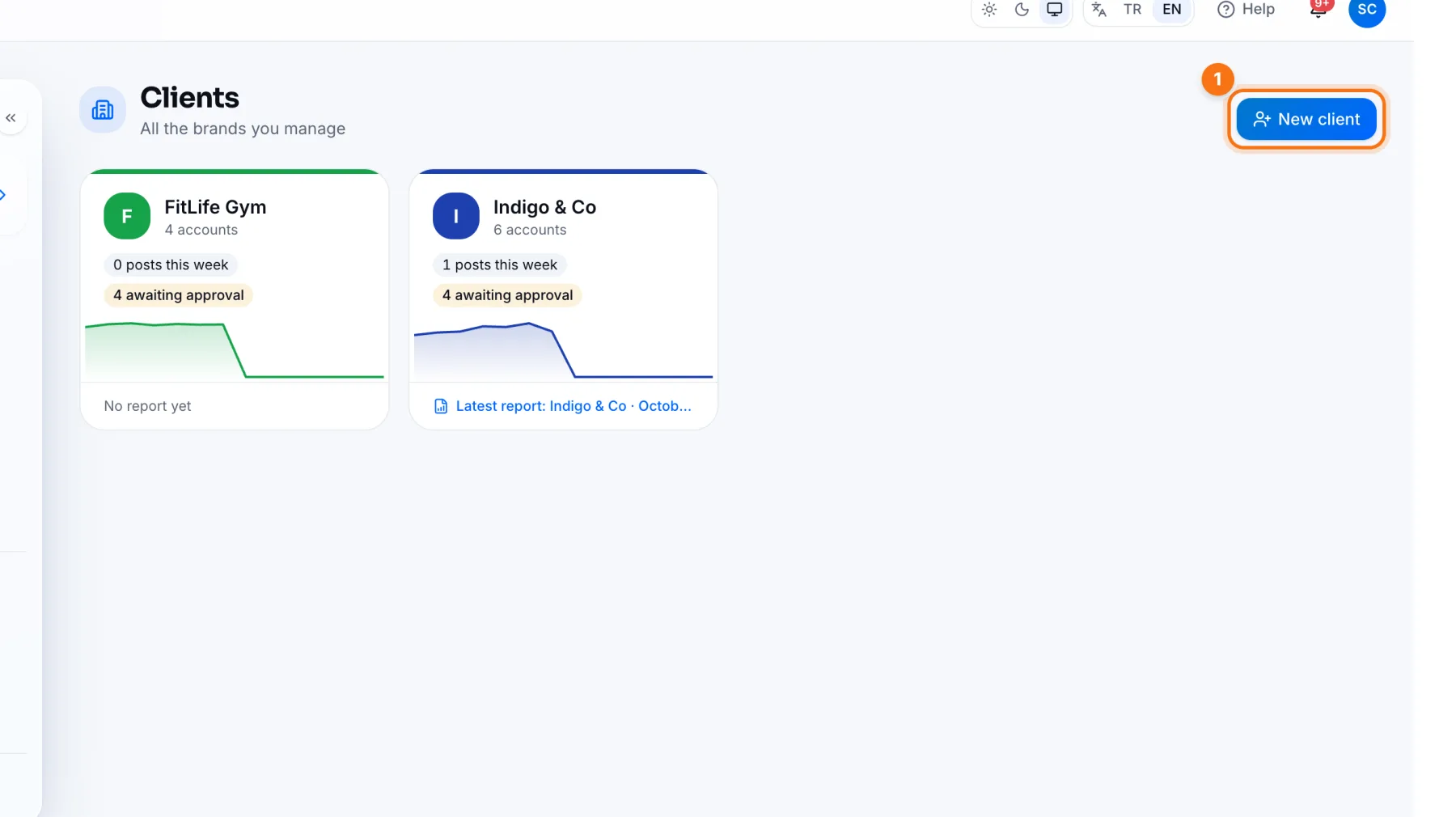
- 1New client: opens the new client form.
Adding a client
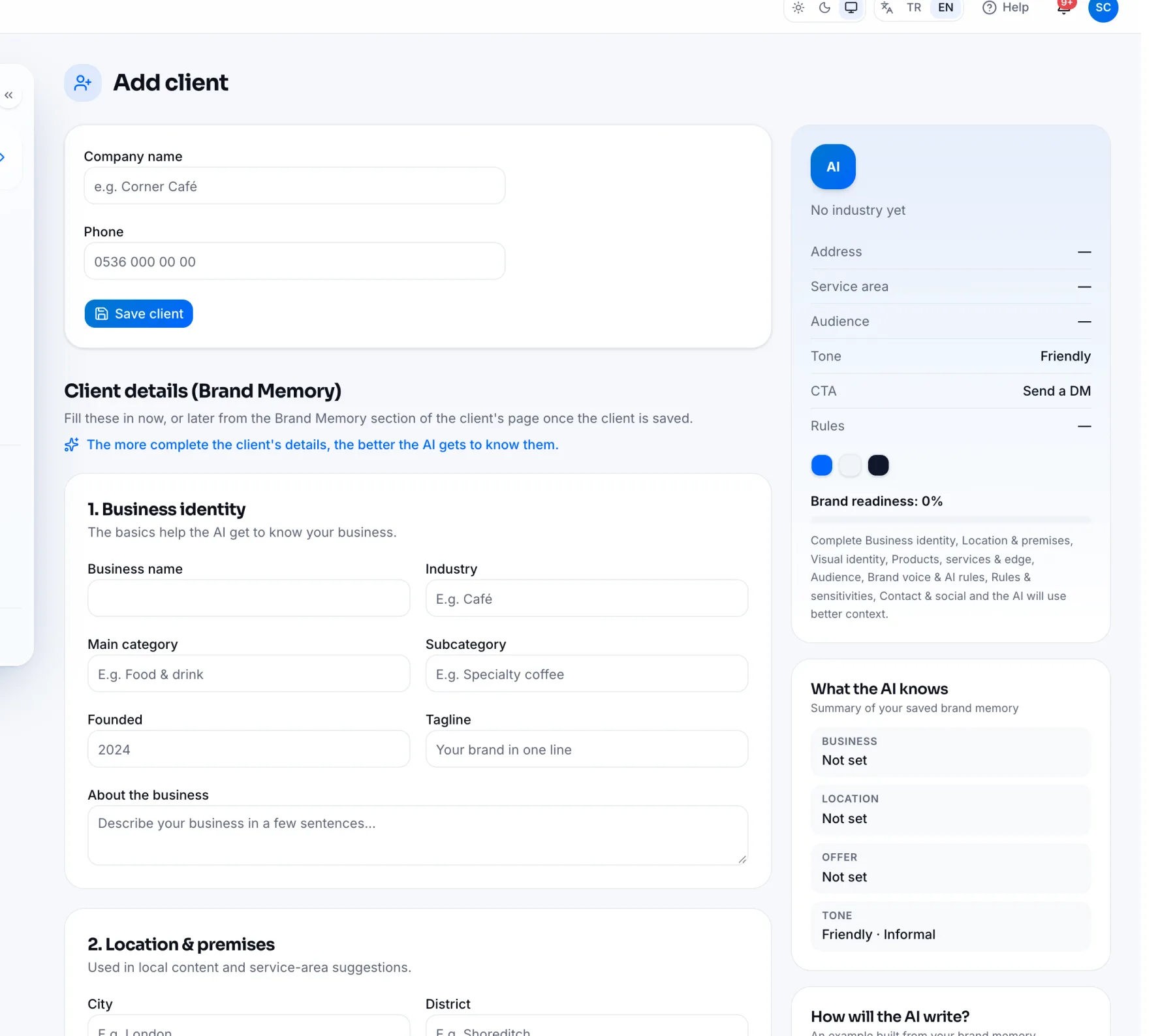
- 1Enter the company name and phone.
- 2Press Save client. The client is created right away.
- 3If you like, fill in Client details (Brand Memory) on the same page: business identity, location, audience, brand voice… You don't have to now; you can add it later on the client's Brand Memory page.
The card on the right shows what IZY AI knows about the client as you type, with a sample caption. The fuller the Brand Memory, the more IZY's text sounds like the client. Details: Brand Memory.
Next step
After adding the client, connect their social accounts: Connected accounts.
Frequently asked questions
How do I delete a client?
From the bin icon on the client's card, on the Overview or the Clients page (agency owner only). All of the client's accounts, posts and reports are permanently deleted; you'll be asked to type the client's name to confirm.