

Connected Accounts: Connecting Your Clients' Social Accounts
Updated: October 14, 2026 · 2 min read
The Connected accounts page shows every client's social accounts, client by client. You see at a glance which are connected and which have expired.
Before asking a client for access: the client's Instagram must be a professional account (Business or Creator), and on Facebook you need a Page, not a personal profile, with the connecting Facebook account as one of its admins. Requirements per platform and how to switch: Getting started.
Reading the page
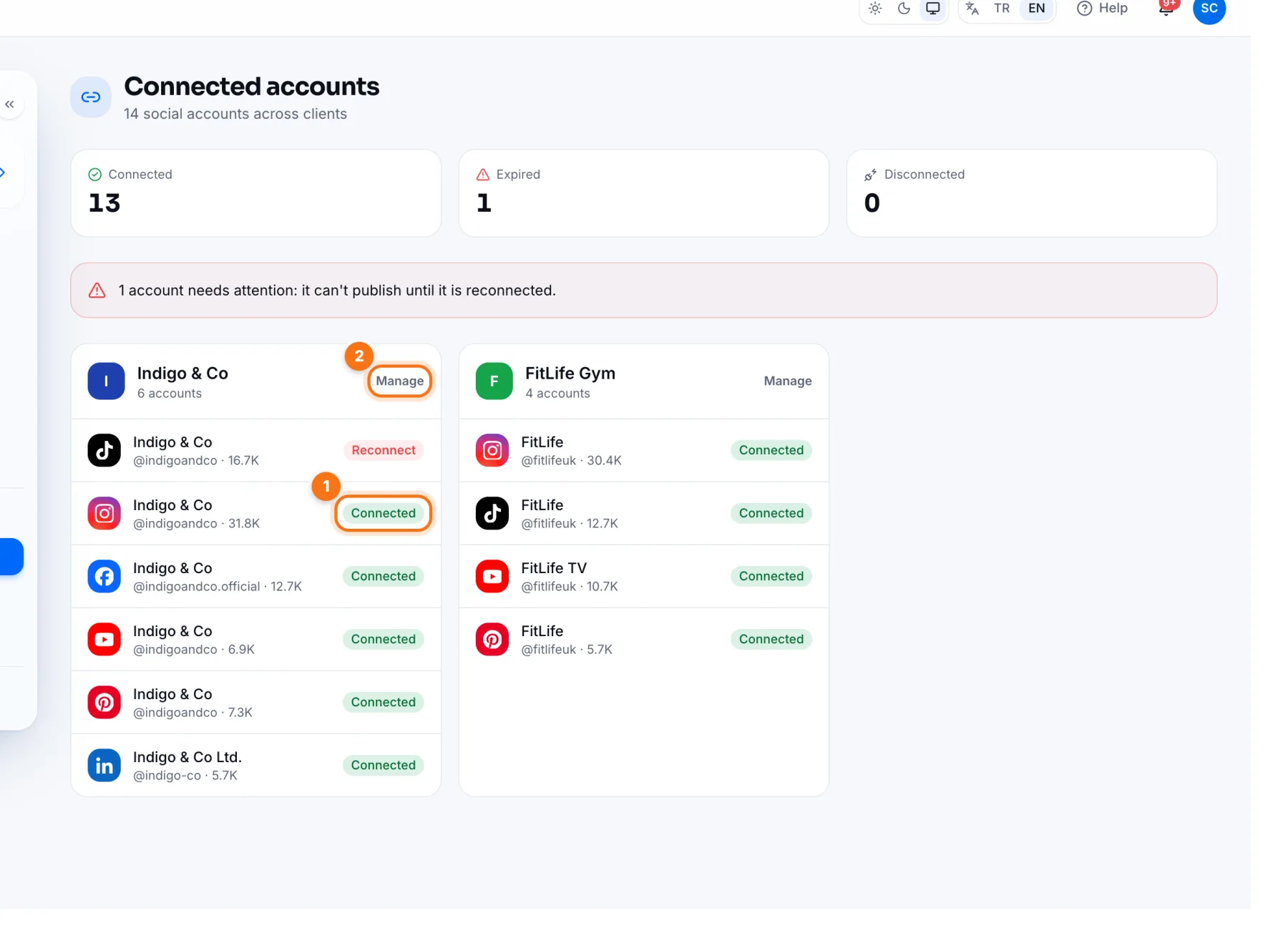
- 1Status: each account shows Connected, Reconnect or Disconnected. The counters at the top add them up.
- 2Manage: opens that client's Connected accounts page, where you connect and disconnect.
Connecting a client's account
- 1Press Manage on the client's card (or Connect account if they have none).
- 2Press Connect on the platform card and allow access with the client's account on the platform's sign-in page.
You don't need the client's password. If the client is with you, they can allow access from their own phone; if not, do the connection step together on a video call. Platform details: Getting started.
Frequently asked questions
What does “session expired” mean?
The platform renewed its access permission or the client changed their password. Scheduled posts for that account won't publish; use Reconnect to renew access.