

Agency Panel: Overview and Switching Between Clients
Updated: October 14, 2026 · 2 min read
The agency panel brings every brand you manage into one place. On the overview you see what goes out today, which posts await client approval and unread messages, across all clients. When you want to work on one client, you switch to their panel.
Two layers
- Agency panel: all clients together. Overview, posting calendar, monthly plan, tasks, team and agency details live here.
- Client panel: everything for one brand: posts, calendar, inbox, analytics, reports, Brand Memory. It's the same as the business panel; those pages are explained in the business guide.
The overview
The cards below count this week's scheduled posts, posts waiting on clients, unread messages and open tasks; click one to open the list. Next 7 days and Upcoming posts show every client's posts with the client's name, and at the bottom each client has a card with a 14-day engagement trend.
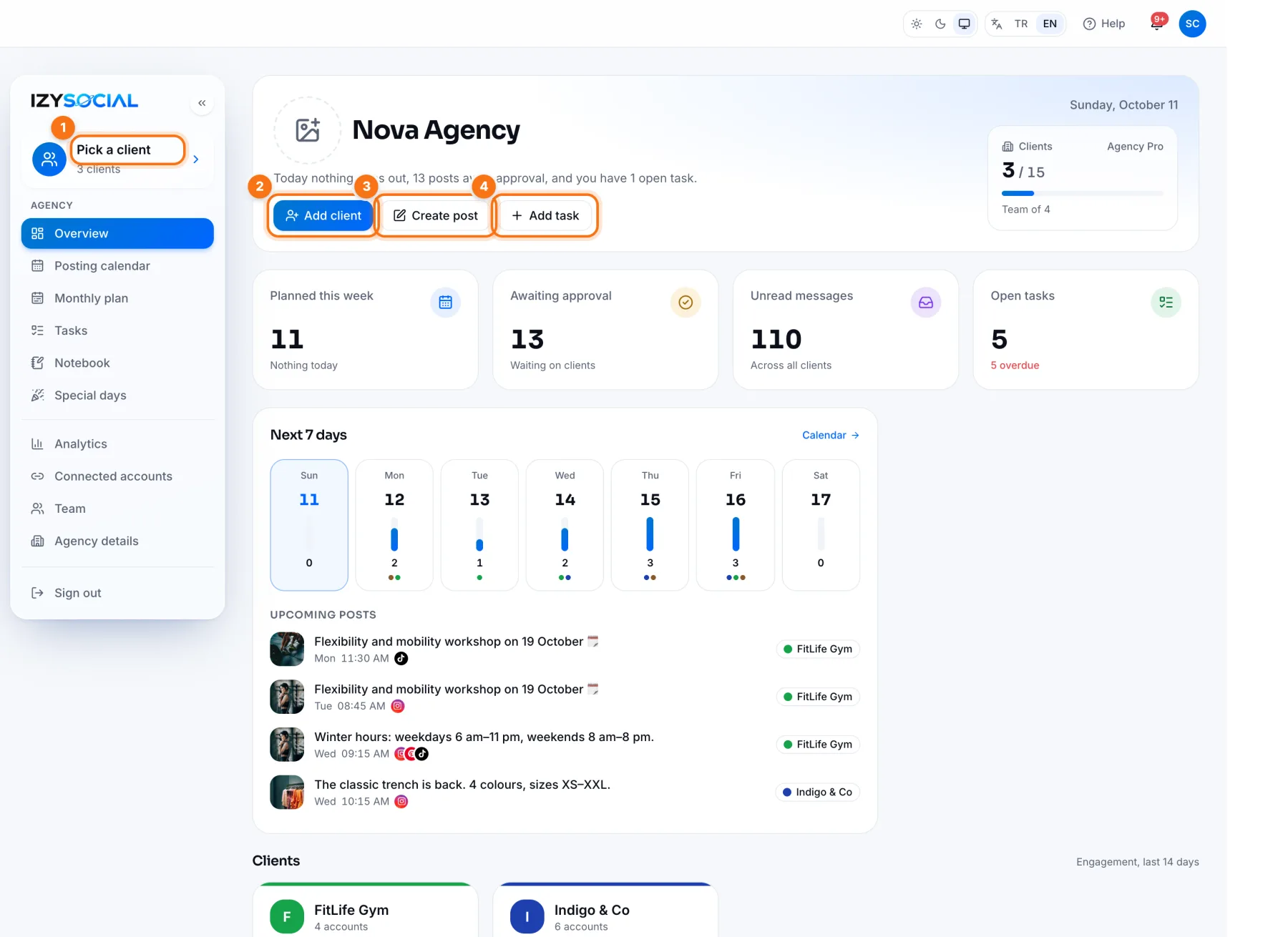
- 1Pick a client: opens a client's panel. Inside a client panel the same spot shows Back to agency panel and Switch client.
- 2Add client: adds a new brand. See Clients.
- 3Create post: pick the client first, then write their post.
- 4Add task: assigns work to your team. See Monthly work plan and tasks.
Frequently asked questions
How many clients can I add?
It depends on your plan. Used and remaining client slots show at the top right of the overview and on the Agency details page.