

Getting Started: Creating an Account and Connecting Social Accounts
Updated: October 11, 2026 · 2 min read
This guide walks you through what to do the first time you open IZY Social: creating your account, connecting your social accounts and introducing your brand to IZY. It takes about 10 minutes.
Before you connect: Instagram needs a professional account and Facebook needs a Page. This is Meta's rule and it applies to every social media management tool. Switching to a professional account is free and takes a few minutes; the steps are below.
Account requirements
| Platform | Account needed | Status |
|---|---|---|
| A professional account (Business or Creator). | Connects with a professional account | |
| A Facebook Page you're an admin of. | Connects with a Page | |
| TikTok | A personal or business account. | Ready to connect |
| YouTube | A YouTube channel on your Google account. | Ready to connect |
| A personal profile or a company page. For a page, you must be one of its admins. | Ready to connect | |
| A business account (free; switch a personal account in settings). | Connects with a business account | |
| Threads | A Threads profile opened with your Instagram account. Personal accounts work too. | Ready to connect |
| X | A personal or business account. | Ready to connect |
Switching Instagram to a professional account
Your followers, posts and username stay the same; you gain insights and business tools. You can switch back to personal any time.
- 1In the Instagram app, go to your profile and tap the ☰ menu at the top right.
- 2Choose Settings and privacy → Account type and tools → Switch to professional account.
- 3Pick a category and choose Business (or Creator if you're a creator).
If your account is private, it becomes public when you switch, and pending follow requests are accepted automatically. Remove any you don't want before switching.
1. Create your account
- 1On izysocial.com, press Try free for 14 days.
- 2When asked how you'll use IZY Social, pick Business. If you manage several clients, pick Agency; the agency panel has its own guide.
- 3Enter your name, email, business name and a password.
- 4Click the verification link in your email. Your panel opens.
No credit card is needed for the 14-day trial.
2. Connect your social accounts
Open Connected accounts in the left menu. Each platform has its own card; press Connect on the card and allow access on the platform's own sign-in page.
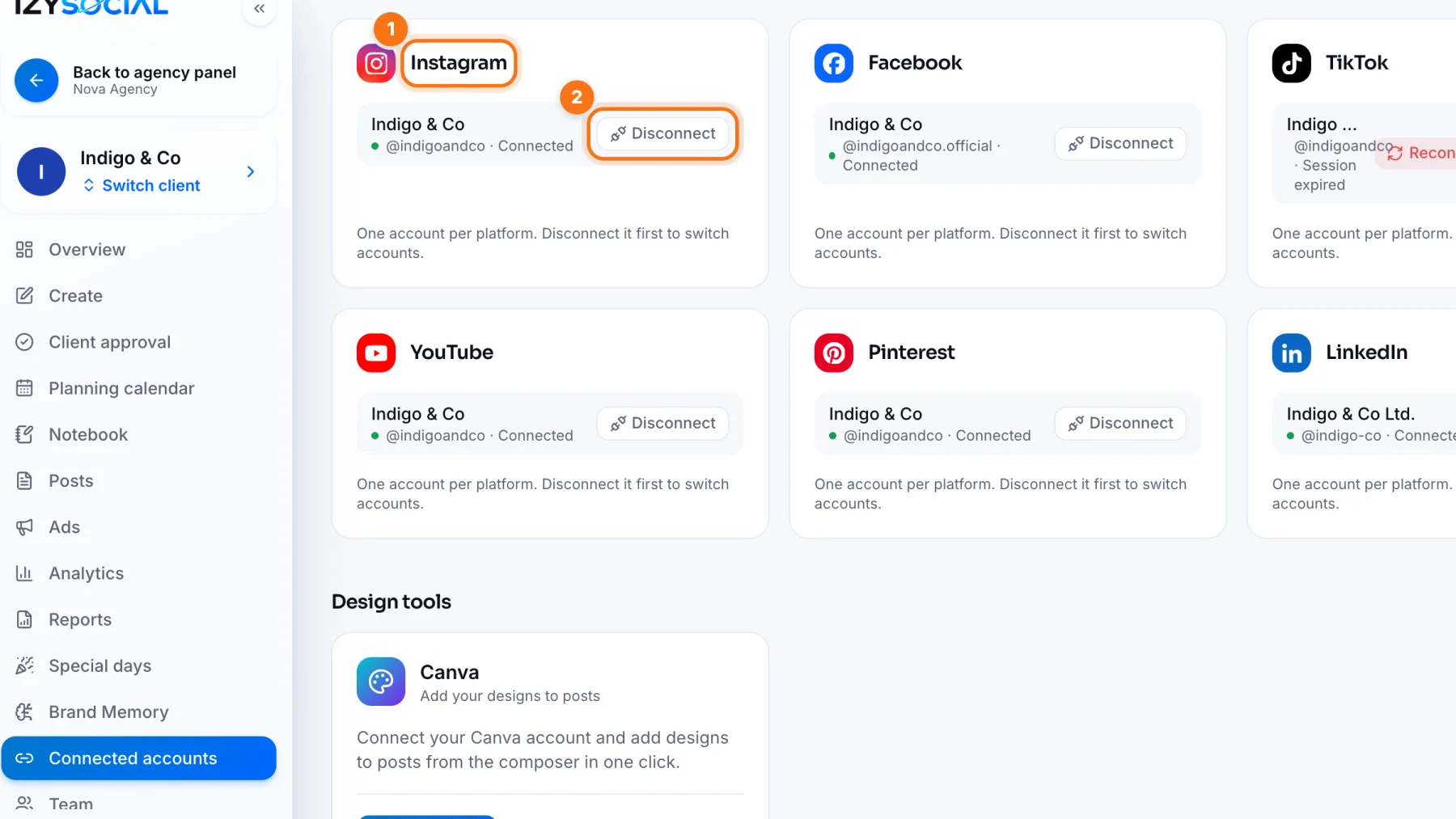
- 1Platform card: each platform has a card. A connected account shows its name and a green Connected label.
- 2Disconnect: to switch accounts, disconnect first, then connect the new one. One account per platform.
Connecting each platform
- Instagram: you're taken to Instagram's sign-in. Sign in with your Instagram username and password, then allow access.
- Facebook: you're taken to Facebook's sign-in. Sign in with your Facebook account, pick your Page, then allow access. Your Facebook account must be an admin of that Page.
- YouTube: sign in with Google and pick your channel.
- LinkedIn: sign in and allow access; posts go to your personal profile.
- Pinterest: sign in with your Pinterest business account; Pins are added to an “IZY Social” board.
- TikTok: sign in to TikTok and allow access.
3. Introduce your brand to IZY
On the Brand Memory page, describe what your business does, who it's for and how it talks. IZY AI uses this when it suggests text. Details: Brand Memory guide.
4. Schedule your first post
You're ready. Next: the Dashboard and Creating a post.
Frequently asked questions
Why won't my Instagram account connect?
Most often the account is still personal. Switch it to a professional account (Business or Creator) in Instagram, then connect again.
Can I post to my personal Facebook profile?
No. Meta stopped apps from posting to personal profiles in 2018. Only Facebook Pages can be posted to.
Does IZY see my account password?
No. You sign in on the platform's own page; IZY only receives an access key for the actions you allow and never sees your password.
What happens if I disconnect?
Posts scheduled for that account won't publish. Past posts and stats are kept, and you can reconnect any time.