

Creating a Post: Write, Add Media, Pick a Cover and Schedule
Updated: October 11, 2026 · 2 min read
The Create page lets you prepare a post once and publish it in the right format on every account you pick. Top to bottom, the page has six steps.
The page at a glance
The phone preview on the right shows how the post will look on the selected platform. Switch platforms with the icons above it.
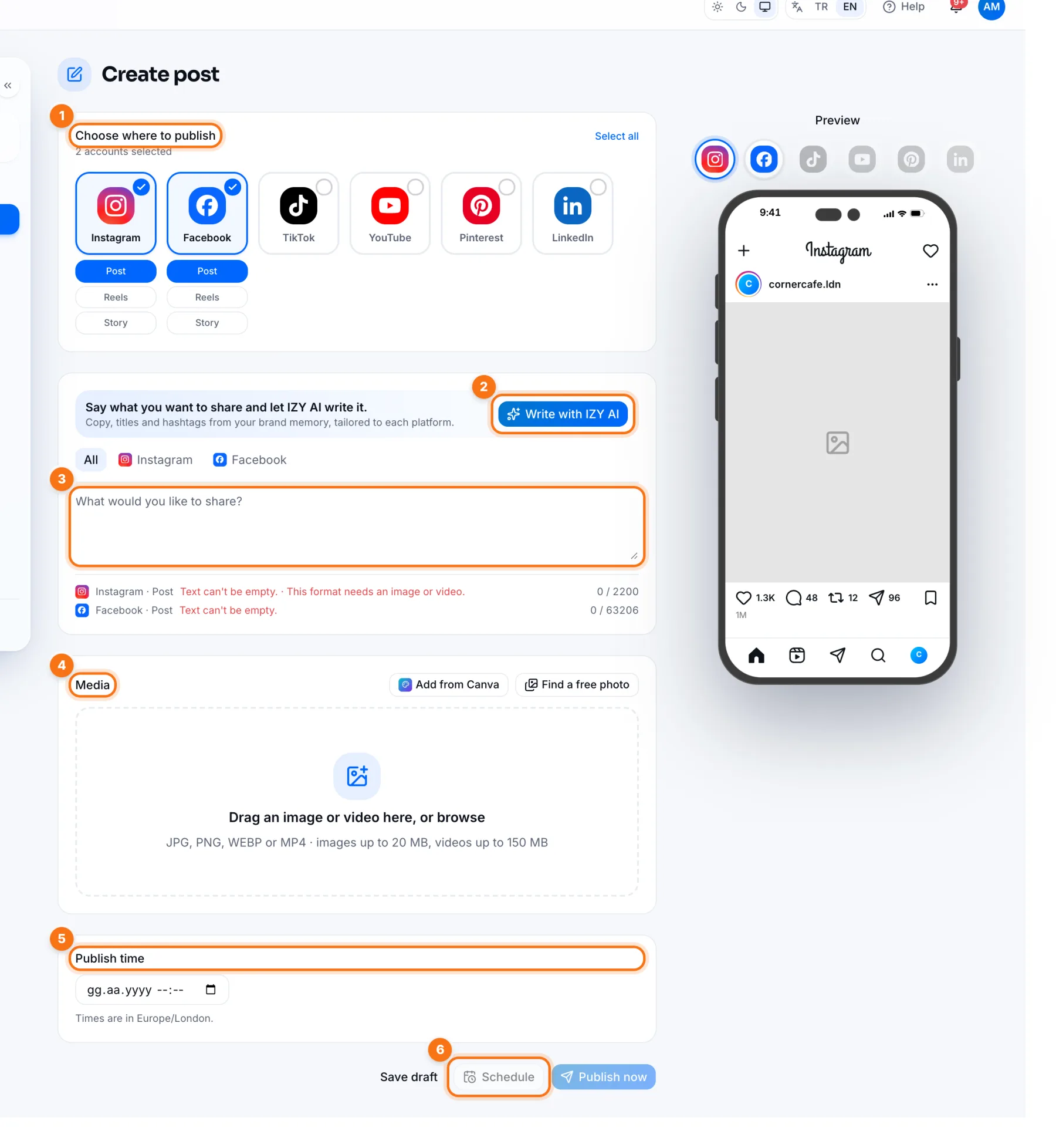
- 1Choose accounts: click the accounts you want to post to. Each selected account shows its formats underneath, such as Post, Reels or Story on Instagram.
- 2Write with IZY AI: let IZY write the text for you.
- 3Text: the post text. Use the tabs above it to write custom text for a platform; each platform's character limit and any problems show underneath.
- 4Media: add images or video.
- 5Publish time: pick the date and time.
- 6Schedule: schedules the post for that time. Publish now shares it immediately, Save draft lets you finish later.
Writing with IZY AI
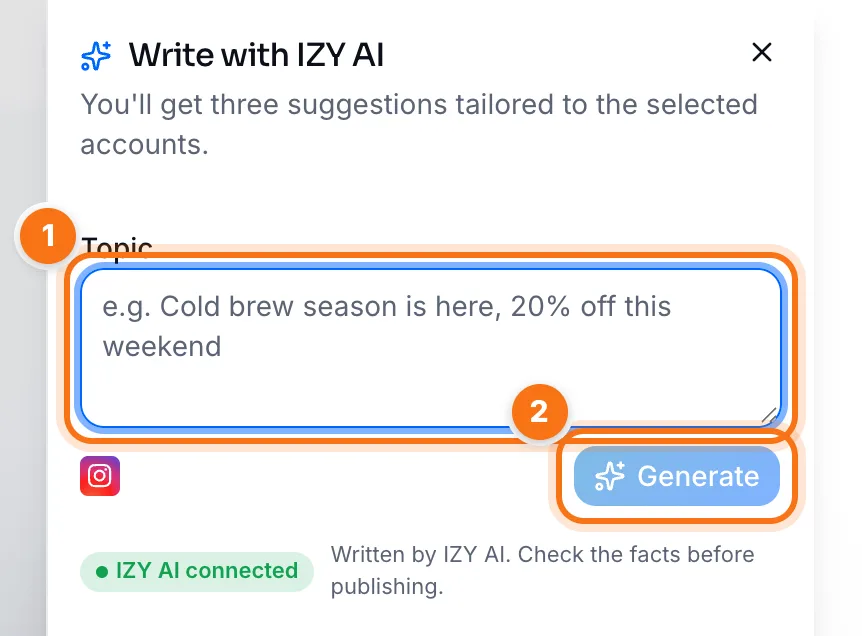
- 1Topic: describe what you want to share in one sentence, e.g. “New season coats are in store, 20% off this weekend”.
- 2Generate: IZY prepares three suggestions based on your Brand Memory. When you like one, press Use this; the text and hashtags are added to the post.
If you pick accounts first, IZY also writes separate text for each platform. Instagram accepts at most 5 hashtags per post, and the suggestions respect that. See the 5-hashtag rule.
Adding images and video
With several images, drag to reorder; the first one becomes the cover.
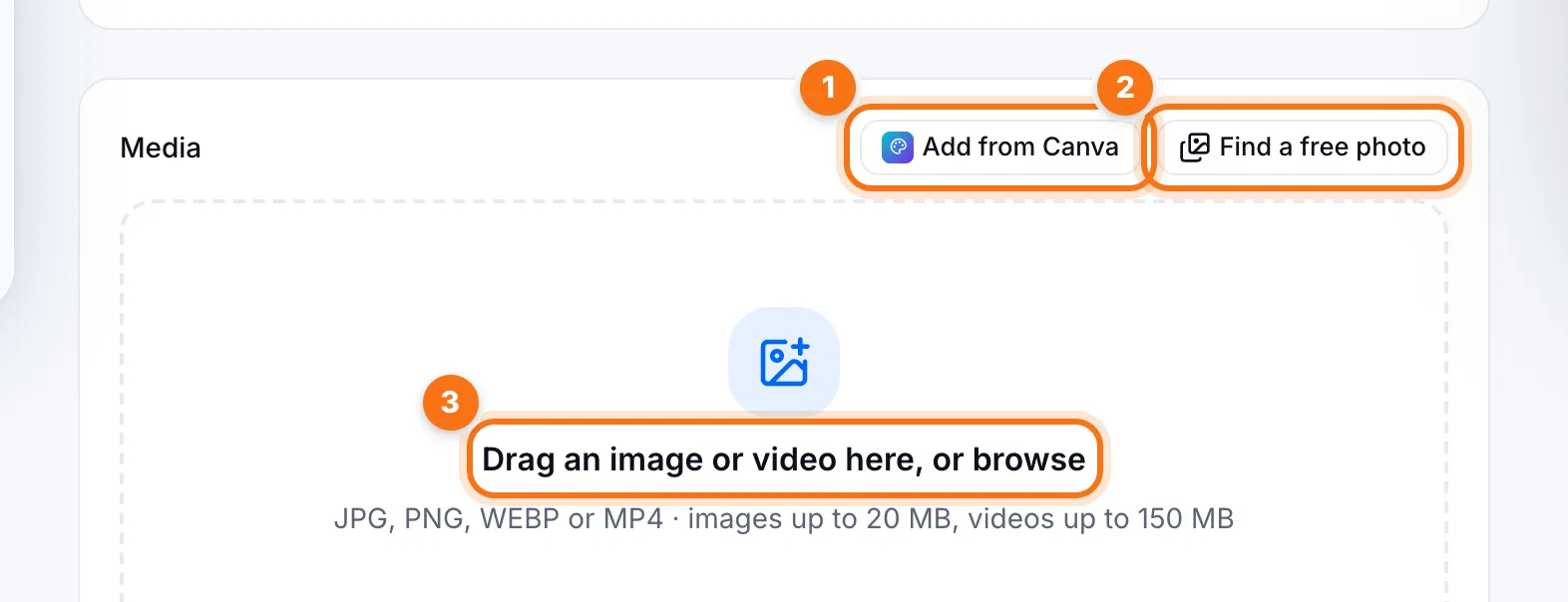
- 1Add from Canva: if Canva is connected, your designs are listed; the first page of the one you pick is added. Use the pencil to edit it in Canva and come back.
- 2Find a free photo: type a topic and choose from royalty-free photos.
- 3Upload: drag an image or video here, or click to choose (images up to 20 MB, video up to 150 MB).
Crop, add text, pick a cover
- Crop: use the Crop button on the image to choose a 4:5 post or 9:16 Story/Reels, then drag and zoom to frame it. Fill any gap with blur or white.
- Add text: put a headline or campaign line on the image.
- Choose a cover (video): pick the frame shown on your profile, or upload a cover image. The cover goes to Instagram, Facebook, YouTube, Pinterest and LinkedIn together.
Always pick a cover for videos. Otherwise the platform uses the first frame, and if that's blank your profile shows an empty tile.
Scheduling
Scheduled posts appear in the Planning Calendar and on the Posts page.
- 1Pick the date and time under Publish time. Times are in your business's time zone.
- 2Press Schedule. IZY publishes the post automatically at that time.
Frequently asked questions
Can I share the same post with different text on each platform?
Yes. Use the platform tabs above the text box. Platforms you leave empty use the main text.
What do the red warnings mean?
Something breaks the chosen format's rules: empty text, a missing image or a ratio Instagram won't accept. The warning tells you how to fix it.
Can I change a scheduled post?
Yes, until it publishes. Open it from the Posts page or the calendar and edit.