

Posts: List, Filter and Fix Your Posts
Updated: October 11, 2026 · 2 min read
The Posts page lists every post you've created: drafts, scheduled, published and failed. Come here to find a post, check its status or resend one that didn't publish.
Reading and filtering the list
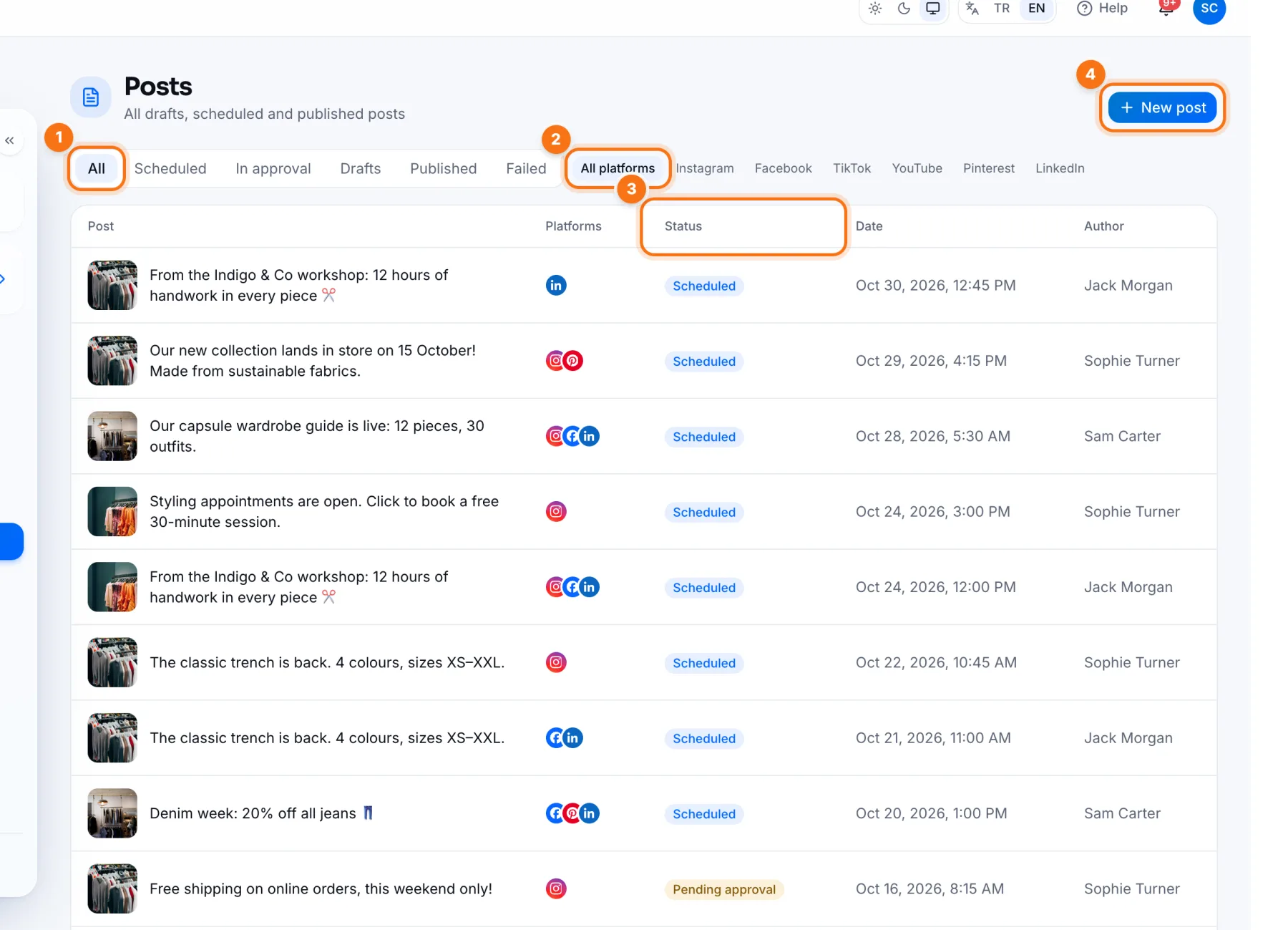
- 1Status filter: narrow the list with All, Scheduled, In approval, Drafts, Published and Failed.
- 2Platform filter: show only one platform's posts.
- 3Status: where each post stands: Scheduled, Published, Pending approval, Changes requested, Partially failed or Failed.
- 4New post: opens the Create page.
A post's details
Click a post in the list to open its details.
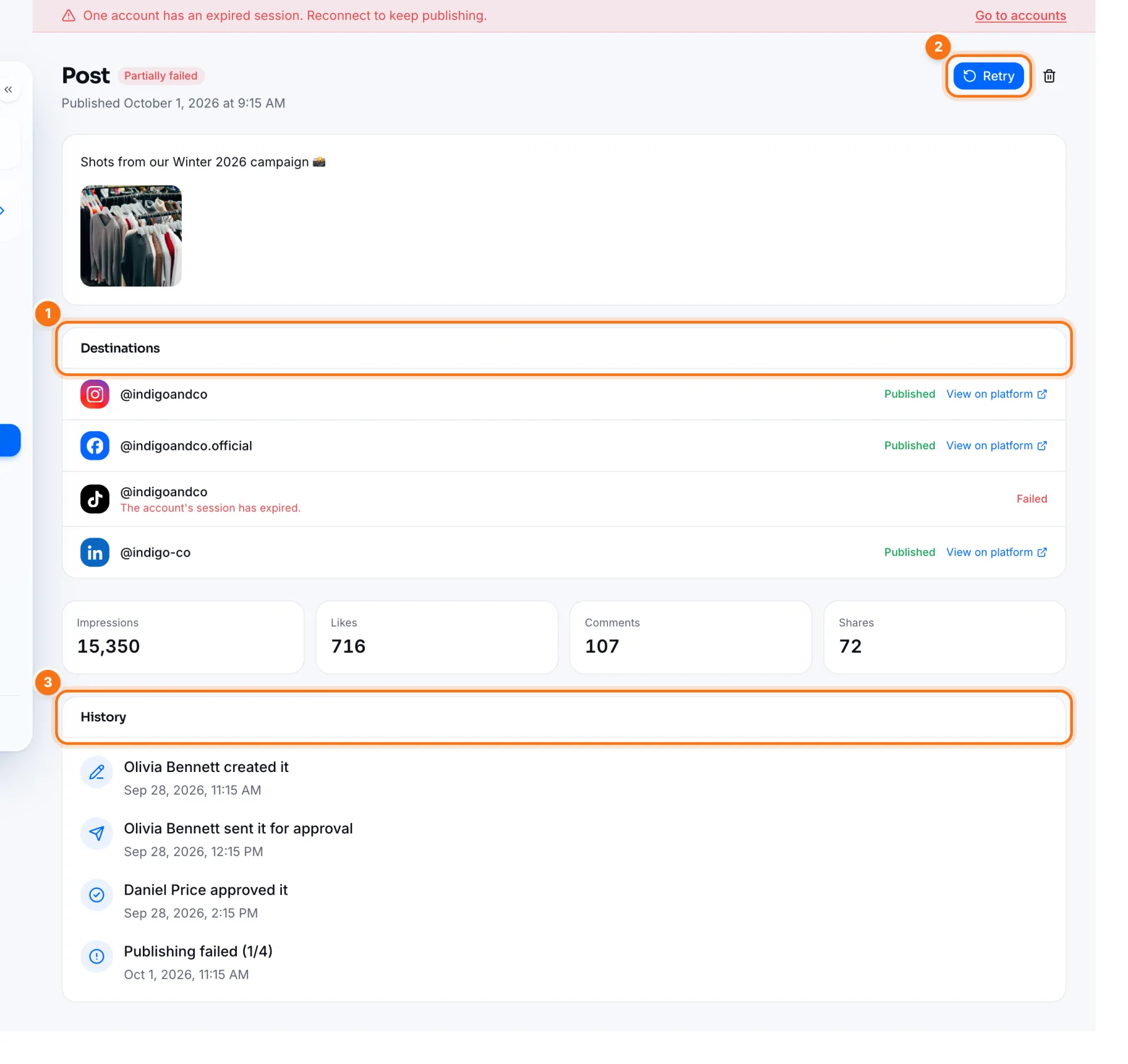
- 1Destinations: every account the post goes to and its status there. Published ones have a View on platform link; failed ones show the reason underneath.
- 2Retry: resends the post to the accounts where it didn't publish.
- 3History: who created the post and when it was approved and published.
Published posts also show impressions, likes, comments and shares.
If a post fails
- 1Read the reason under Destinations on the details page.
- 2If it says the session expired, reconnect the account under Connected accounts. If it's an image or text issue, edit the post.
- 3Press Retry.
If a post publishes on some accounts but not others, its status is Partially failed. Retry only sends to the accounts that failed; the others don't get a duplicate.
Frequently asked questions
How do I delete a post?
With the bin icon at the top right of the details page. Only posts that haven't published yet can be deleted; published posts stay as a record. To remove one from a platform, delete it in that platform's app.
Can I publish a scheduled post right away?
Yes. Use Publish now on the details page.