

Dashboard: Your Social Media at a Glance
Updated: October 11, 2026 · 2 min read
The dashboard is the first page you see after signing in. It shows what goes out today, how the last 30 days went and which messages are waiting, all at a glance. When you want to change something, you jump to the right page from here.
What's on the screen?
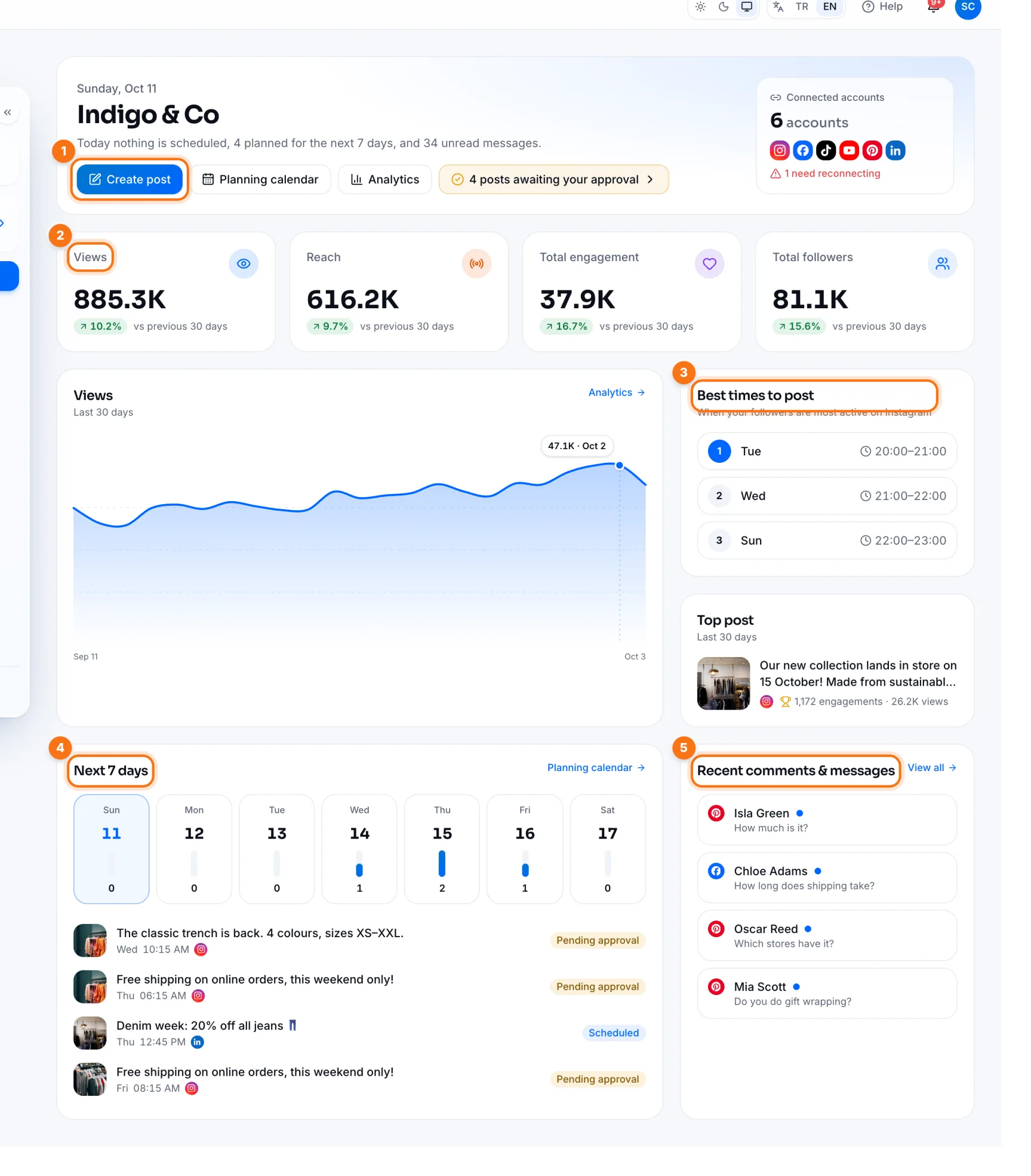
- 1Create post: the quickest way to write a new post. The buttons next to it open the calendar, analytics and posts waiting for approval.
- 2Last 30 days: views, reach, total engagement and followers. A green arrow means up versus the previous 30 days, a red arrow means down.
- 3Best times to post: the three time slots when your followers are most active on Instagram. Try to schedule your posts then.
- 4Next 7 days: how many posts are scheduled each day, with the upcoming posts and their status underneath.
- 5Recent comments & messages: the latest comments and DMs from every platform. Click one to open it in the Inbox.
How to use it every day
- 1Check the dashboard in the morning: what goes out today, any empty days?
- 2If messages are waiting, reply from Recent comments & messages.
- 3Once a week look at the Last 30 days cards; if something dropped, find out why on the Analytics page.
If an account loses its connection, a red warning appears at the top. Reconnect from the link in the warning, or posts scheduled for that account won't publish.
Frequently asked questions
How often are the numbers updated?
Stats are fetched from the platforms regularly. A new post's numbers can take a few hours to settle.
How are the best times calculated?
From Instagram's data on when your followers are online. If Instagram doesn't provide it, your past posts' engagement is used.