

Planning Calendar: See and Move All Your Posts on One Screen
Updated: October 11, 2026 · 2 min read
The Planning Calendar shows your posts across every platform on one screen. You see what goes out on which day, spot empty days and reschedule by dragging.
Reading the calendar
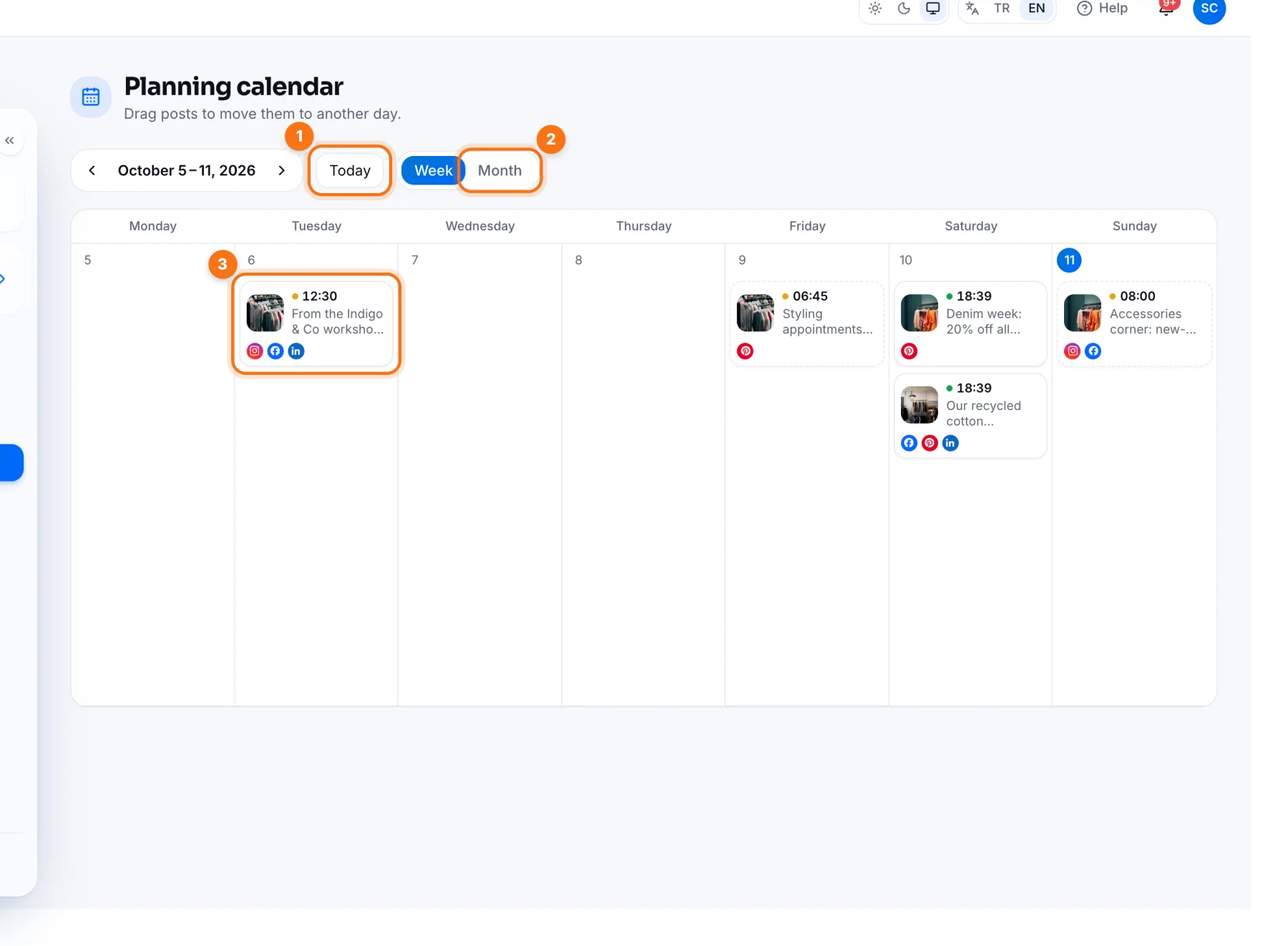
- 1Today: jumps back to today. Use the arrows beside it for the previous and next week.
- 2Week / Month: switches the view. Week shows details, month gives the overview.
- 3Post card: a small picture, the time, the start of the text and platform icons. The coloured dot by the time shows the status: blue scheduled, orange waiting for approval, green published, red failed.
Moving a post to another day
- 1Grab the post card you want to move.
- 2Drag it to the new day and drop it.
- 3It moves to the new day at the same time, and a confirmation appears.
To change the time, click the card and edit the post.
Adding a post to a day
Click an empty spot on a day to open that day's posts.
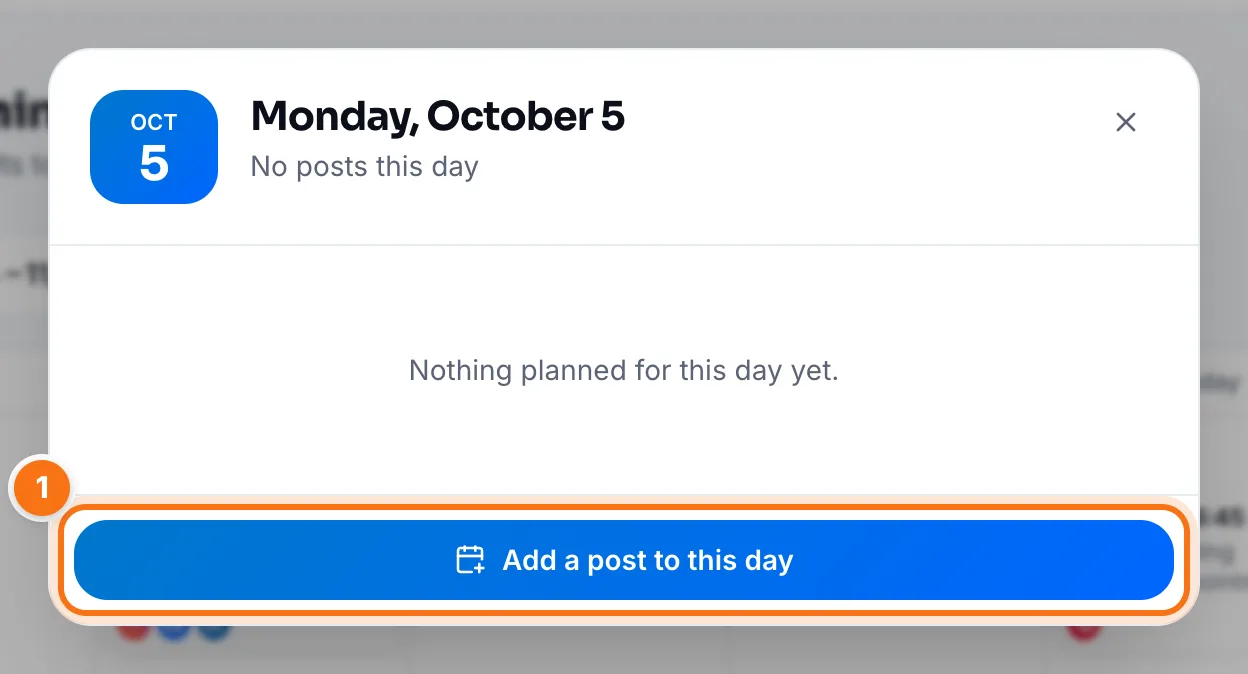
- 1Add a post to this day: opens the Create page set to that date at 10:00; you can change the time.
Getting the most out of the calendar
- Pick one day a week, say Monday, to schedule the whole week.
- Add dates from Special days ahead of time.
- Spread posts across the week instead of stacking one day; steady posting reaches more people.
Frequently asked questions
Can I move a published post?
No. Published posts stay on the calendar as a record but can't be moved; only posts that haven't published yet can.
Why do some cards have a dashed border?
A dashed border marks drafts and posts with requested changes; they aren't scheduled, so they won't publish automatically. A red border means the post failed to publish.