

Team, Roles and Agency Details
Updated: October 14, 2026 · 2 min read
You can add as many teammates as you need to an agency account. Each person's role decides what they can do. Agency details hold the logo and contact details used in reports and wherever clients see your agency.
Inviting a teammate
They receive an invite email, and you can copy the invite link to send yourself. The link is valid for 7 days. Pending invites appear in the list and can be revoked.
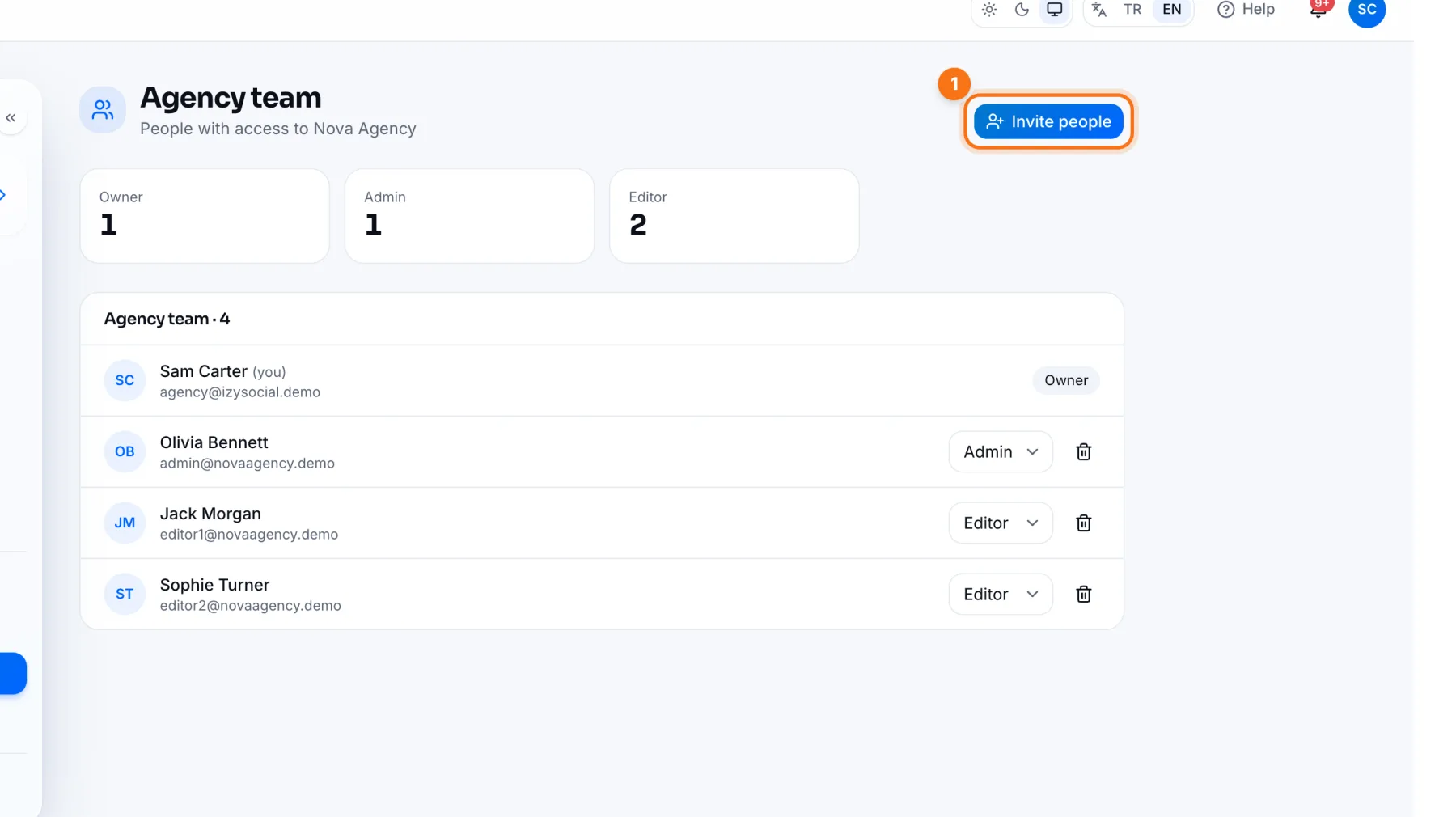
- 1Invite people: on the agency's Team page, enter their email and choose a role.
Assigning teammates to a client
Assigned people are notified of the client's new messages and approval decisions. Their names appear on the client card, and they see their own clients first on the Overview.
- 1Open the client: pick the client in the left menu.
- 2Team: on the client's Team page, tick the people who work on this client and save. A client can have several people; one can do the videos and another the posts.
Roles
- Owner: full access, including clients, team and plan.
- Admin: manages accounts, the team and publishing.
- Editor: prepares posts, sends them for approval and replies to messages.
Change someone's role from the menu next to their name, or remove them with the bin icon. The agency must always have at least one owner.
Agency details
The Your plan card at the bottom shows your plan and remaining client slots; Compare plans shows the others.
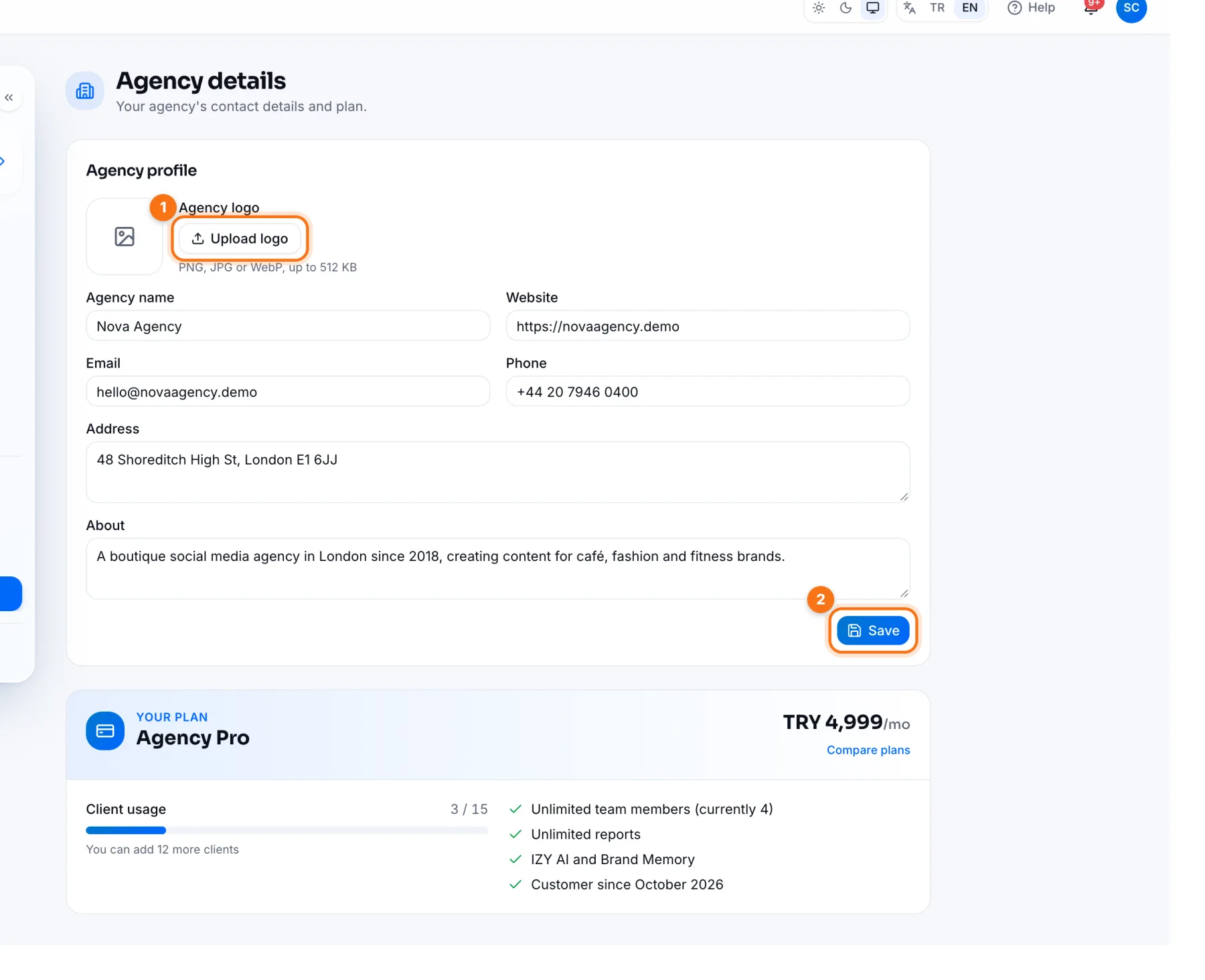
- 1Upload logo: add your agency logo (PNG, JPG or WebP, up to 512 KB).
- 2Save: saves the agency name, website, email, phone, address and about text.
Frequently asked questions
Is there a limit on teammates?
Agency Pro includes 5 team members and Agency Max 15, you included. Your clients don't count: they review posts through approval links.